Appearance
Blueback Investigator Quick Guide
Petrel integration
_Cross posting between Investigator and Petrel windows _
When spatial dimensions (X, Y, time or depth coordinates) are added to the investigation, the investigation points can be displayed in Petrel windows, and filters and coloring defined in Investigator can be applied in the Petrel windows as well.
Using spatial selectors, it is also possible to highlight points in Investigator plots from selected regions in Petrel windows
From Investigator to Petrel
From Petrel to Investigator
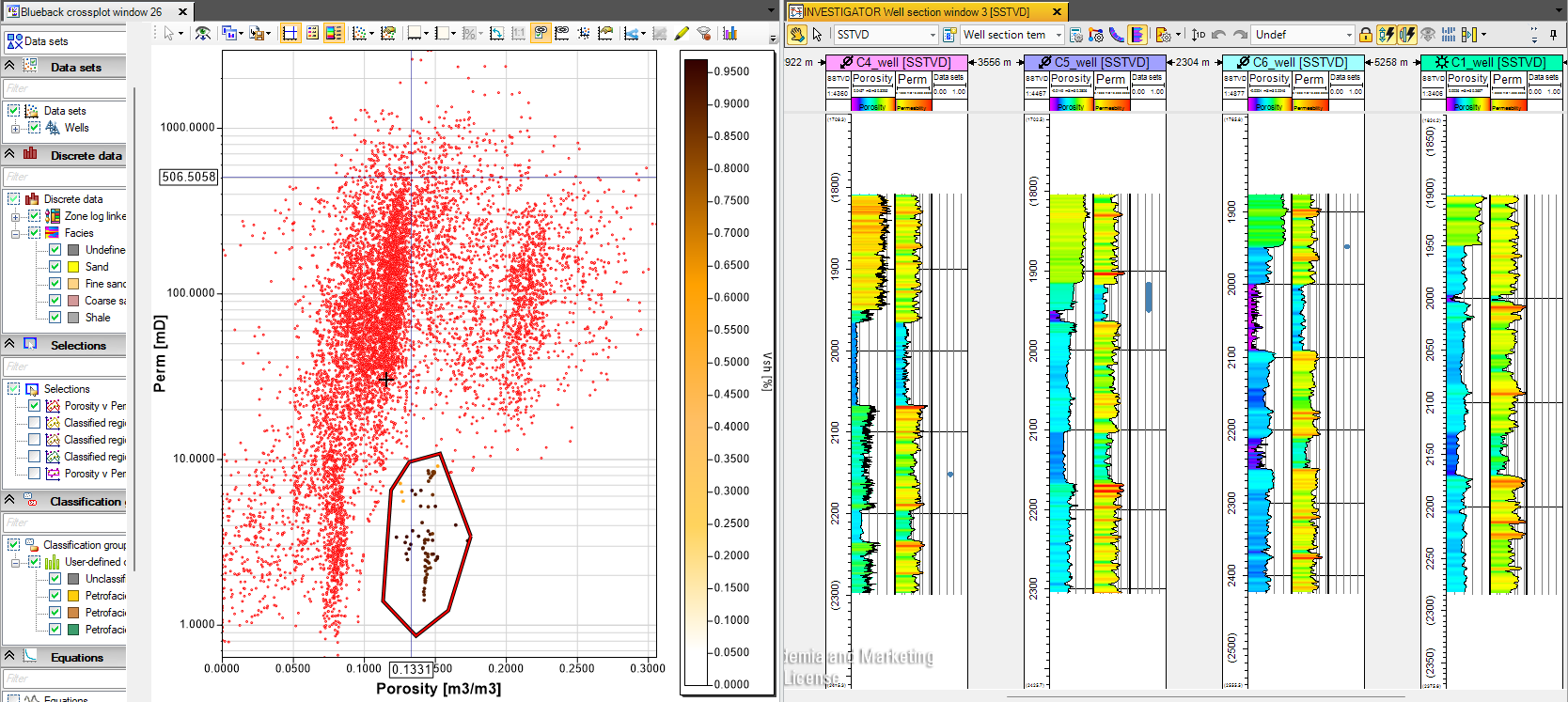
Cross posting – well logs example
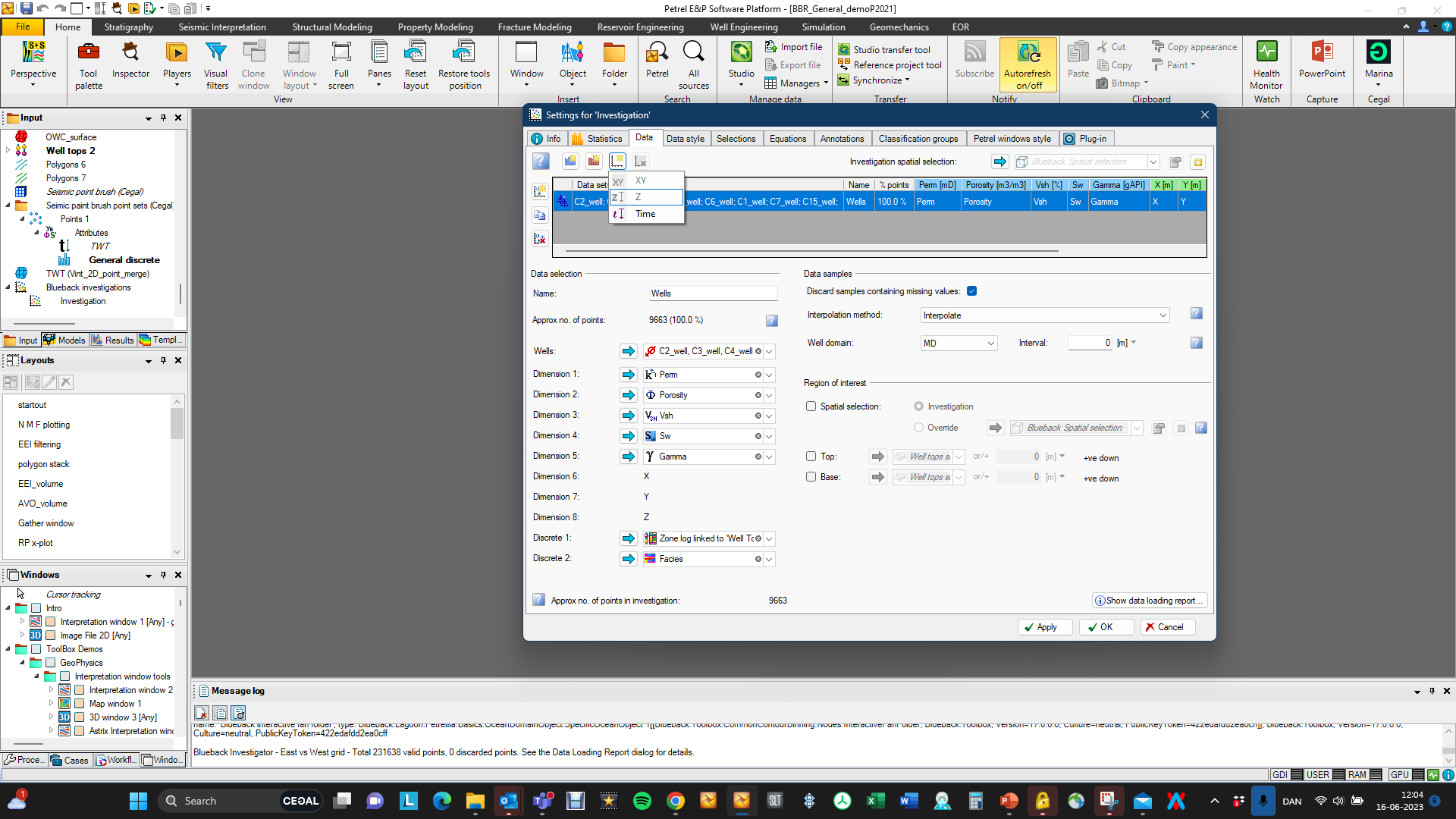
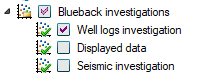
Por-perm plot outlier filtered and located in wells in a Petrel well section window. Add X, Y and depth dimensions to the well log investigation, activate the well section window and toggle on the investigation object, the investigation will be displayed in a log track. Apply the ”link visuals button” from the investigation plot window and select the well section window from the menu. Now filters applied in the Investigation window will also be applied in the Petrel window
Apply ”link visuals” and select Petrel window
Add spatial dimensions to the investigation
Cross posting – well logs example 2
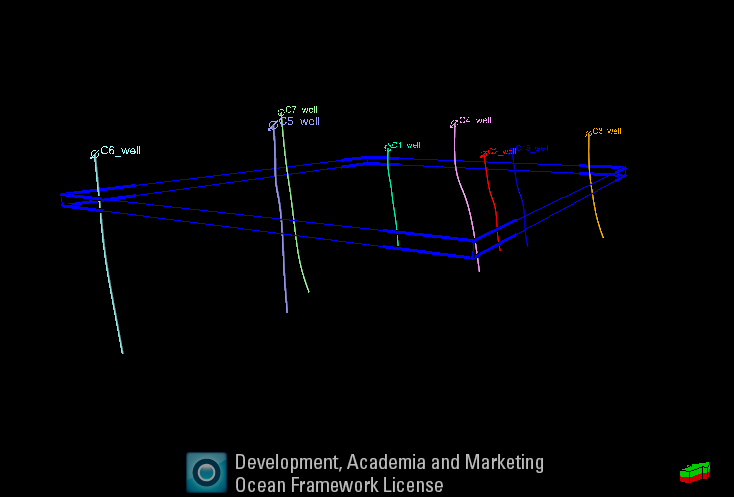
The Blueback Investigator also allow for identifying features from the Petrel well section window to the Investigator plots. Insert a spatial selector that covers the wells in the WSW and crop it vertically to cover a small vertical interval in the wells. Copy the wells data set in the investigation. And apply the spatial selector to the copied data set. Change the color to color by wells
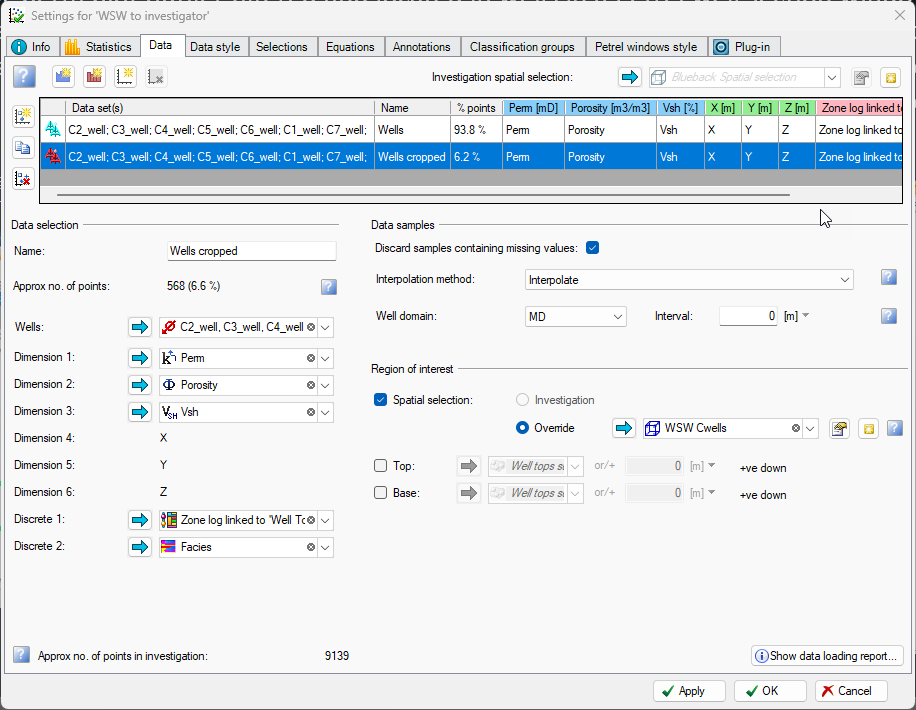
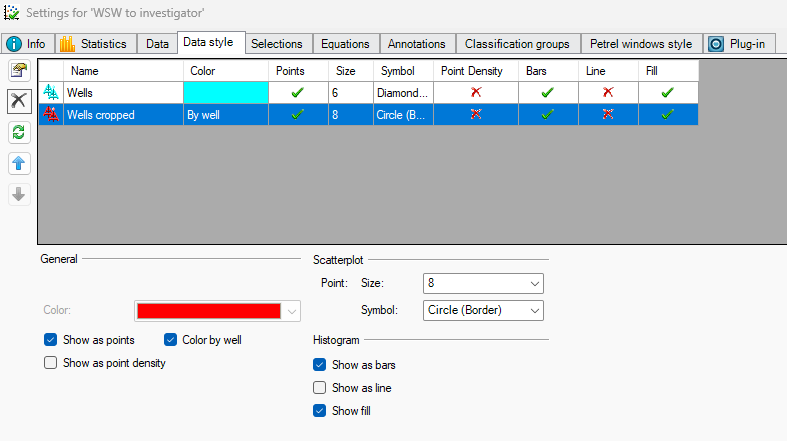
Color the copy data set by well
Spatial selector covering wells
Spatial selector applied to copy of original well data set
Cross posting – well logs example 2
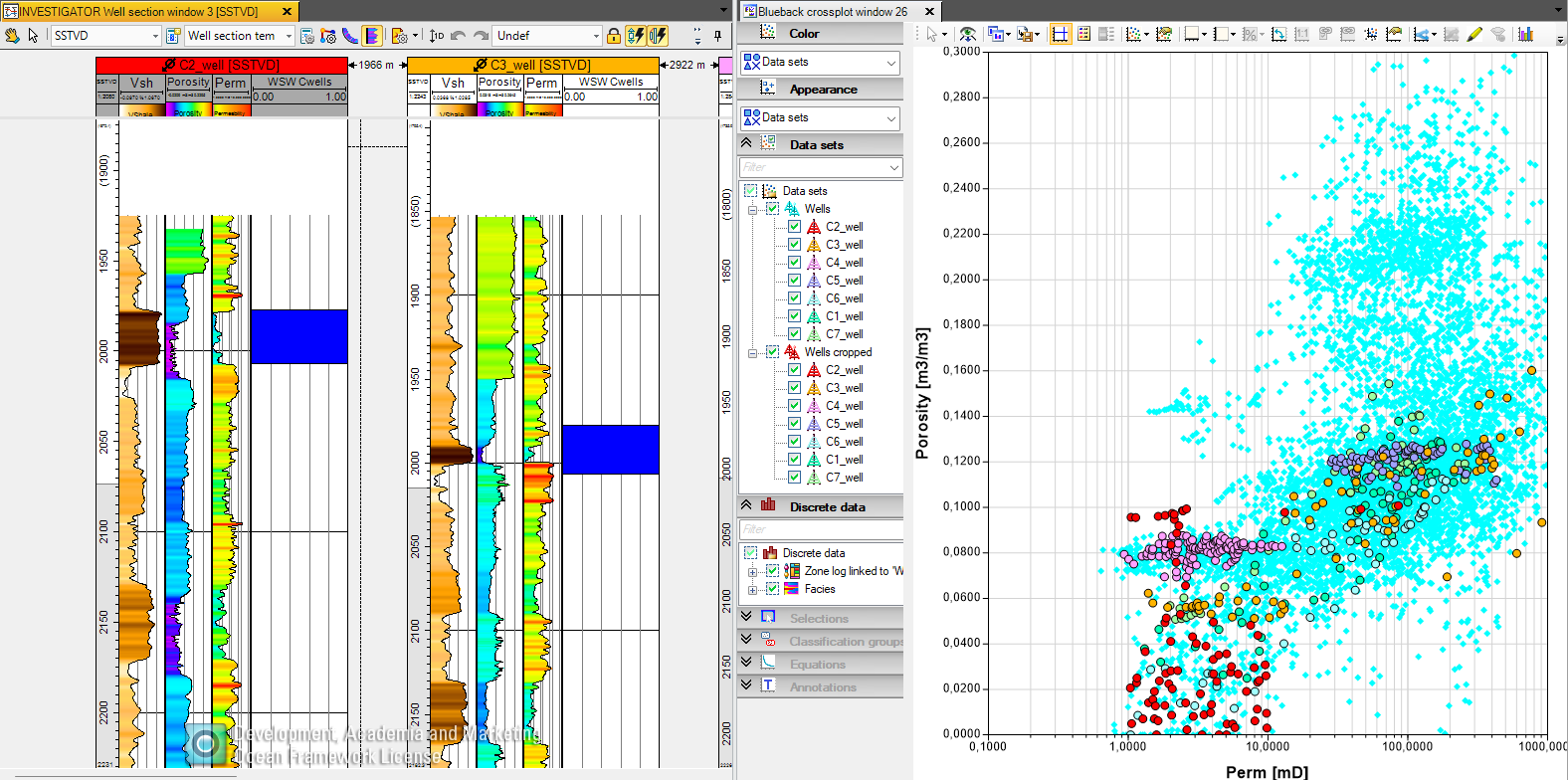

Display the spatial selector in the WSW

Use the Manipulate spatial selector button from the Blueback Spatial selector tool palette menu to manipulate the spatial selector
See points updating interactively as the spatial selector Is manipulated in the WSW
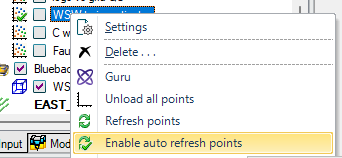
Make sure, that ”Enable auto refresh points” is activated for the Investigation
Cross posting – seismic example
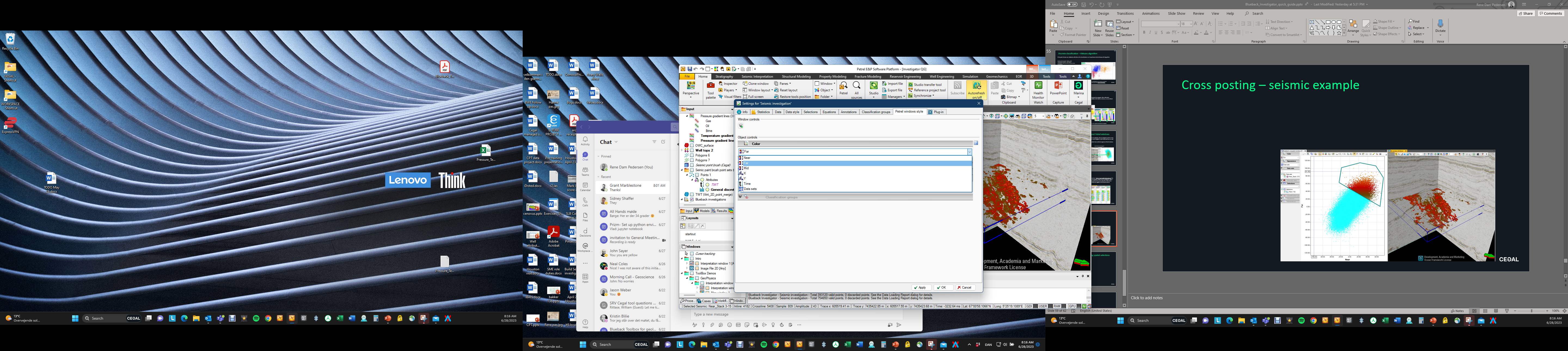
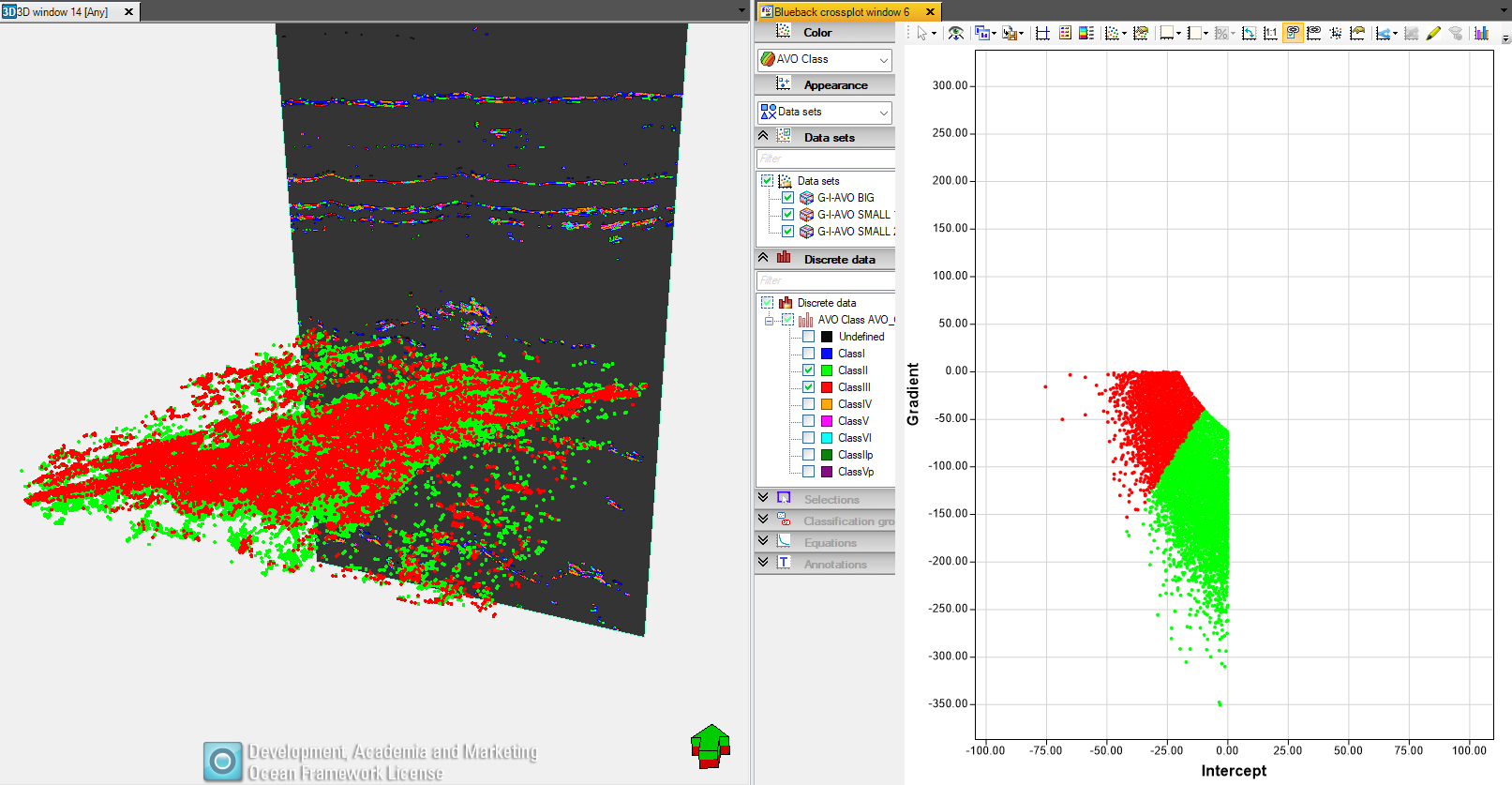
Filter on features in a seismic attribute cross-plot, and display filtered feature in Petrel 3D window. X, Y, and time dimensions are added to the investigation when building from a spatial selector, display the investigation in the 3D window, control coloring in the 3D window from the ”Petrel windows style” tab in the investigation panel, hit ”link visuals” from the cross-plot toolbar and select the 3D window, apply filter
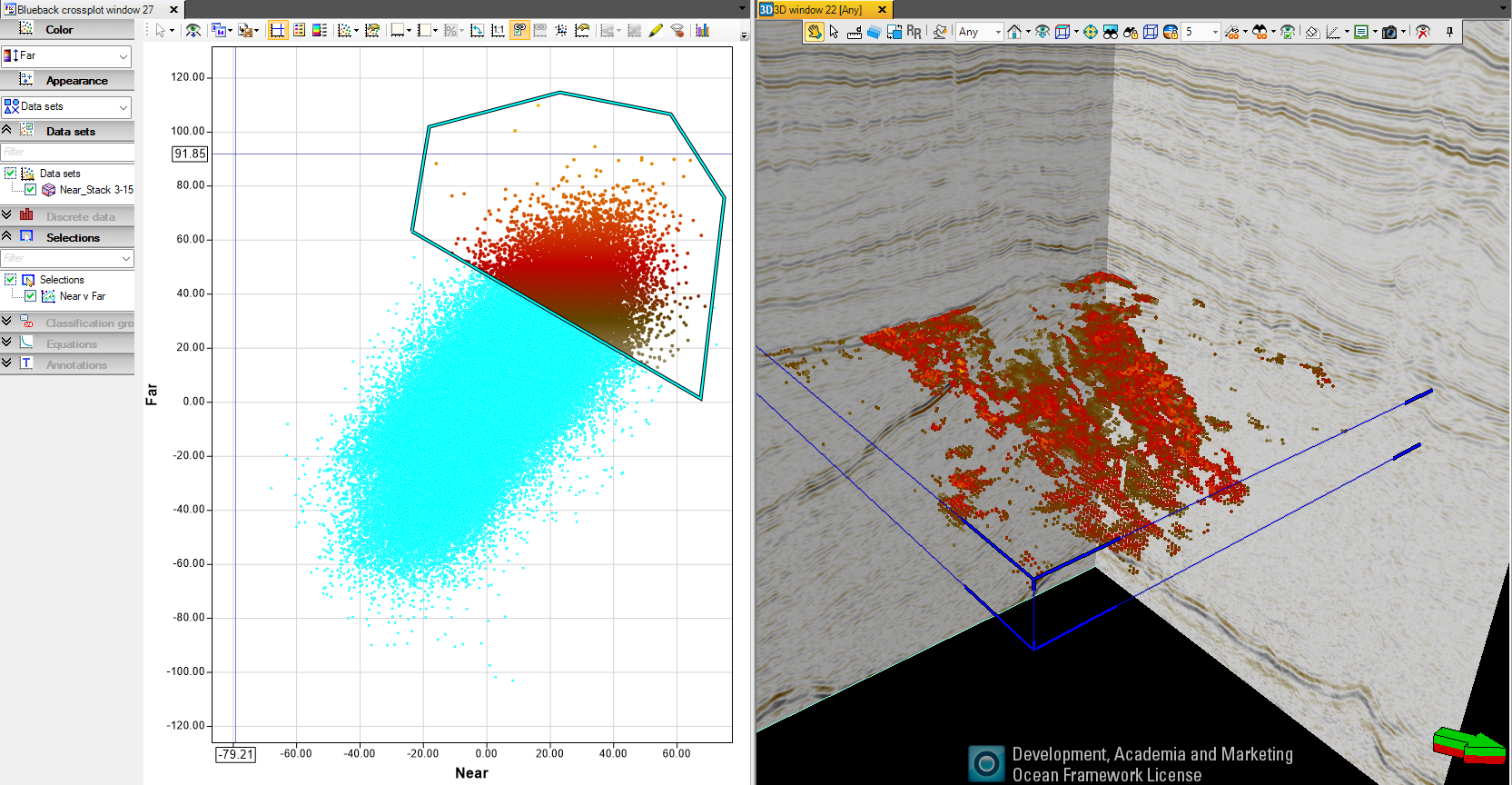
Apply ”link visuals” and select Petrel window
Cross posting – seismic example using spatial selections
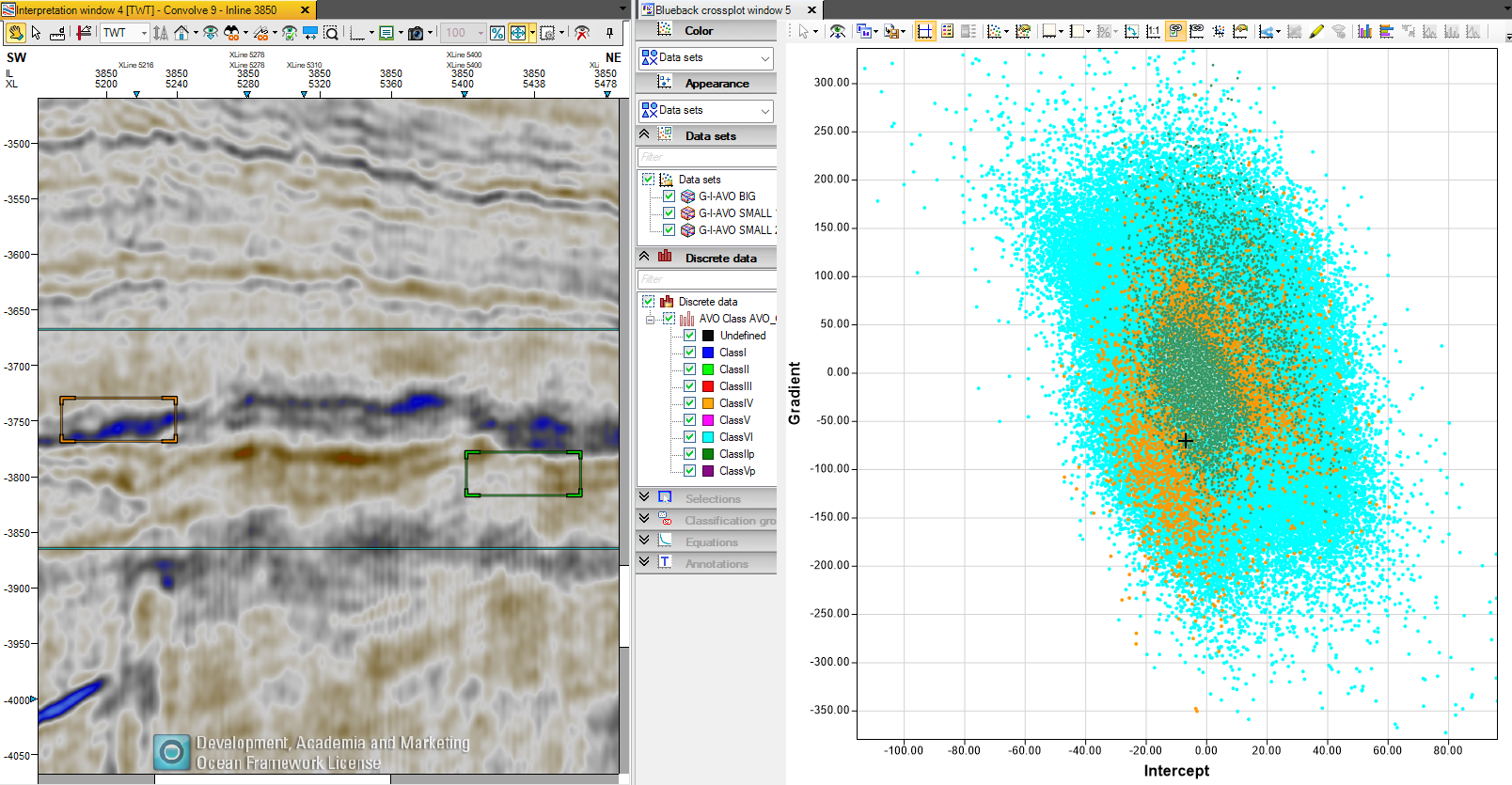
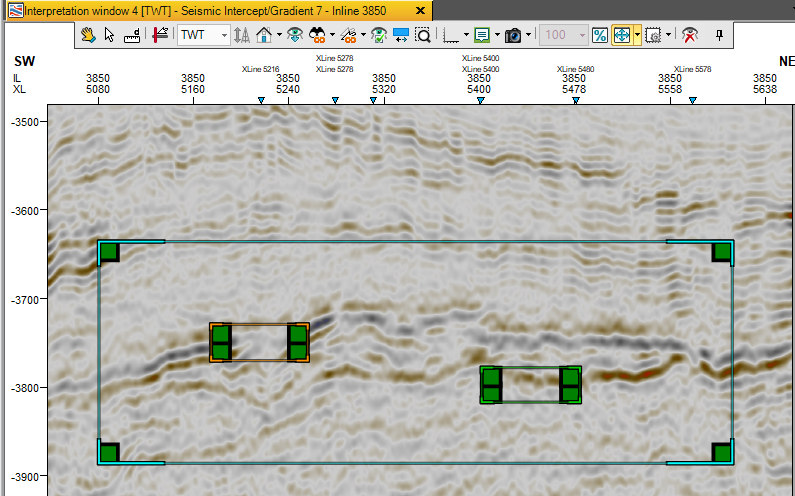
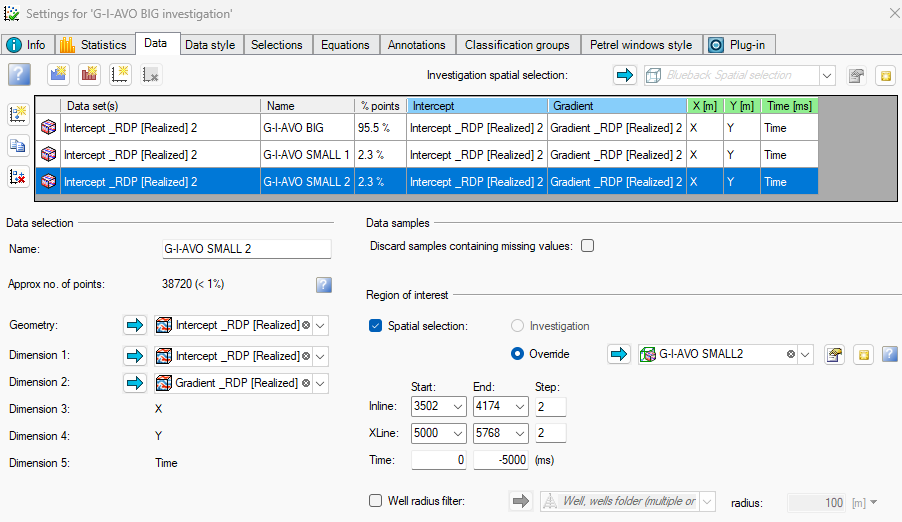
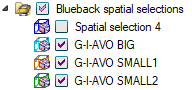
Data features from Petrel windows, can be highlighted in Investigator windows using spatial selectors. Add several identical data sets to the investigation but apply different spatial selectors to each data set
Continuing next slide
Cross posting – seismic example using spatial selections
Display the spatial selectors in a Petrel window and manipulate and see instant update in Investigator windows (Select ”Enable auto refresh points” from the Investigator RMB context menu) If the spatial selectors are displayed in an interpretation window use the ”Manipulate spatial selection button” from the Blueback Spatial selector Petrel tool Palette
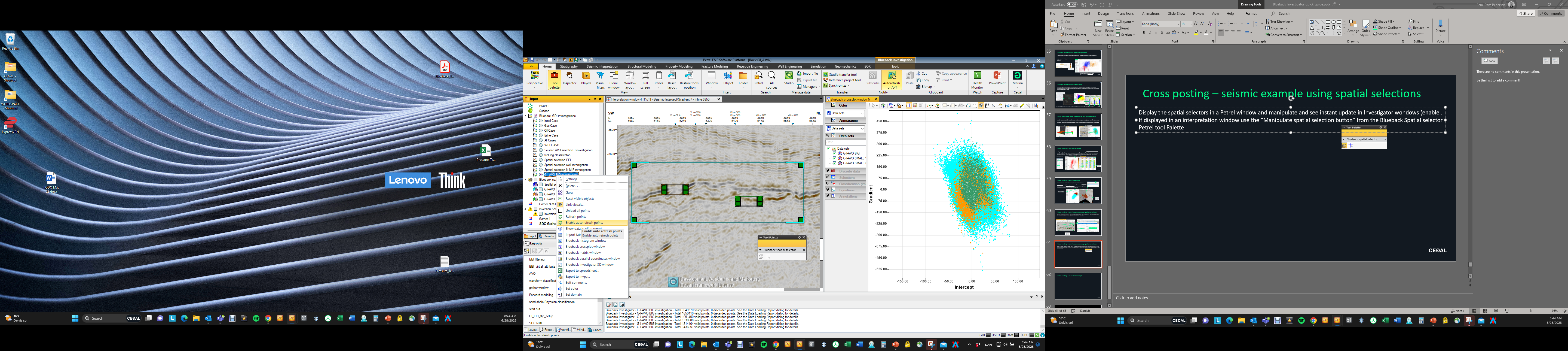
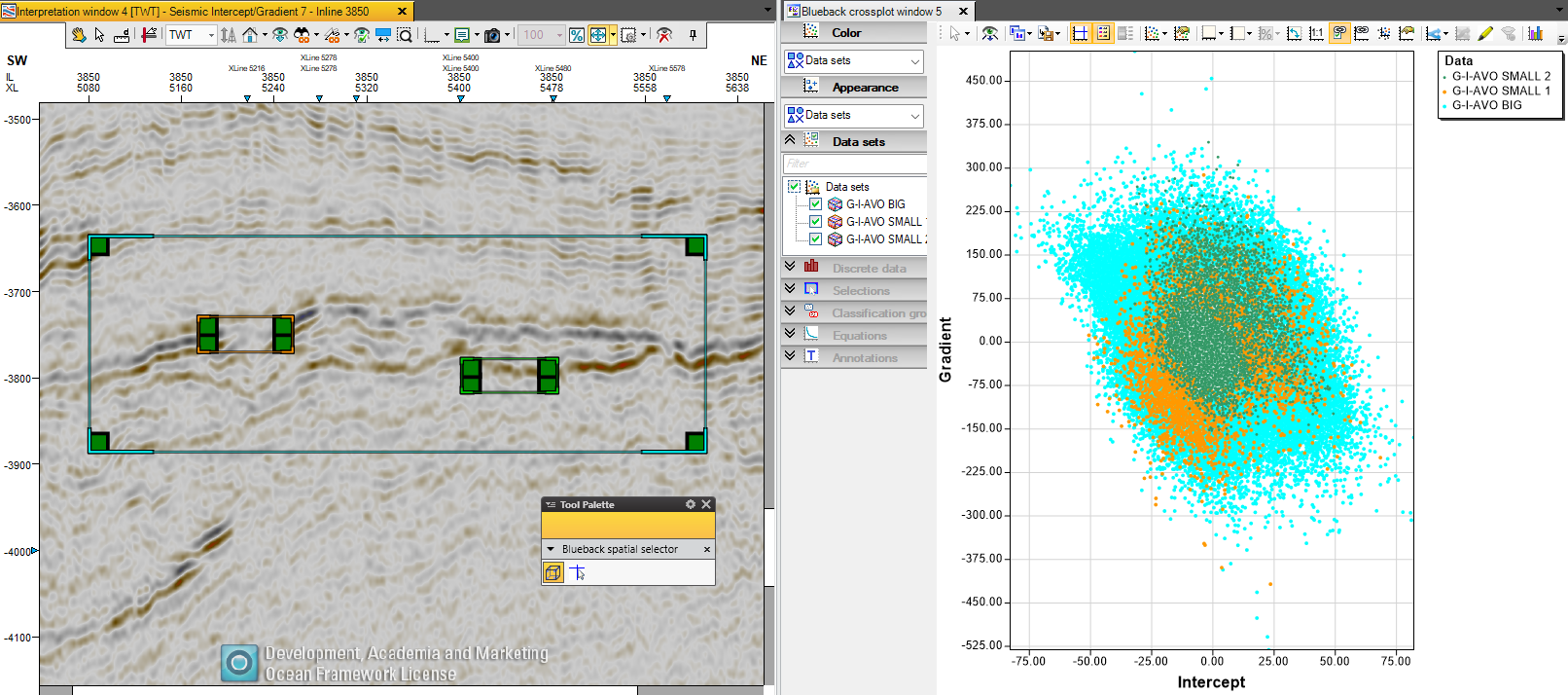
Manipulate spatial selectors and see investigator plots update instantly
Cross posting – 2D surface example
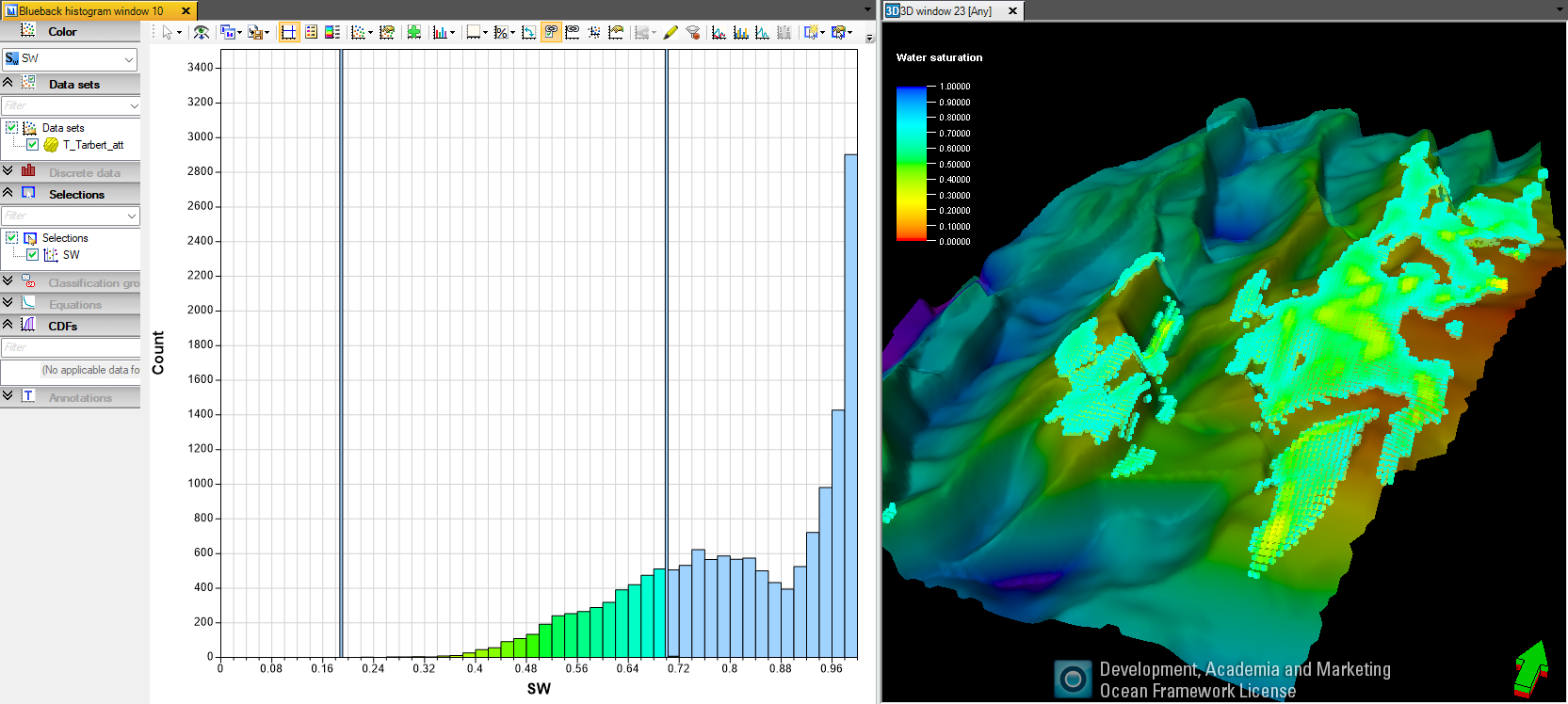
Build an investigation with 2D surface attributes, add spatial dimensions and display in Investigator window and Petrel window. Link visuals from the investigator window and select the Petrel window. Apply a filter in the investigator window and the investigator points in the Petrel window are filtered interactively
Apply ”link visuals” and select Petrel window